How to print QR codes that scan every time
Choose the right file type, size, resolution, paper and finish for printed QR codes, and use our pre-print checklist so a whole run doesn’t go to waste.
Add LearnQRCode as a preferred source on Google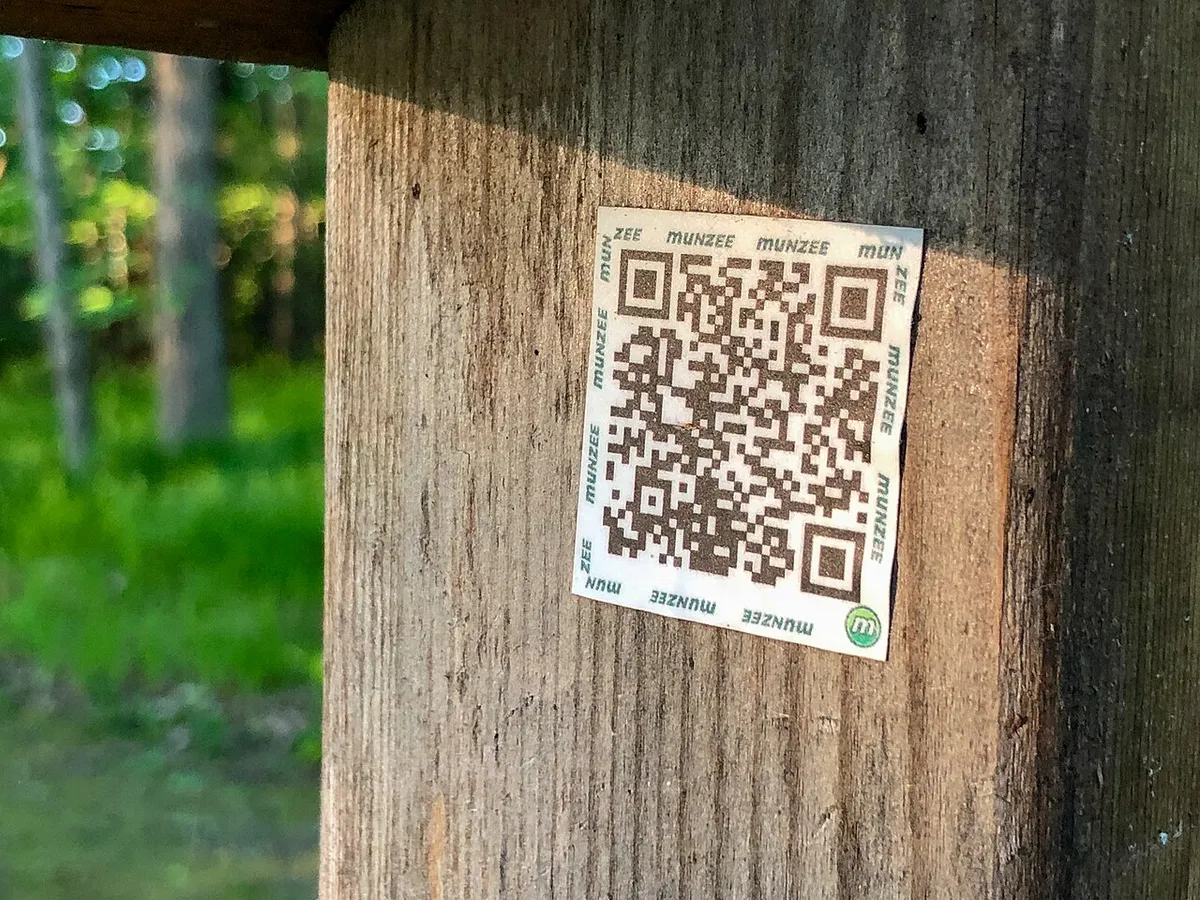
Quick answer
- Use a vector file (SVG, EPS or PDF) whenever you can; it stays sharp at any size.
- Print dark on a light, matte background, with a blank margin four modules wide, at least one-tenth of the scanning distance wide.
- Print one proof at 100% on the real material and scan it with several phones before the full run.
Print a QR code in 4 steps
- 1Use SVG, EPS or PDFOr PNG at 300 dpi final size
- 2Size it for the scanning distanceKeep a four-module quiet zone
- 3Print a proof at 100%Matte, on the real material
- 4Scan with several phonesAt the real distance and light
In this guide
A code that looks perfect on screen can fail on paper: blurry, too small, washed out by gloss, or crowded by the design. Get the file, size and material right, then test.
Step 1: Start with the right file
Vector (SVG, EPS or PDF) describes the code as shapes, so it prints crisp at any size and can be recolored without loss. Choose it for print whenever offered.
Raster (PNG or JPG) is fine if big enough. Print work is commonly prepared at about 300 dpi at final size:
| Printed width | Minimum image width at 300 dpi |
|---|---|
| 2.5 cm (1 in) | 300 px |
| 5 cm (2 in) | 600 px |
| 10 cm (4 in) | 1,200 px |
| 20 cm (8 in) | 2,400 px |
Prefer PNG: JPG compression smudges module edges. Never enlarge a small image with smoothing on.
Step 2: Size it and leave a margin
A widely used rule of thumb: width at least one-tenth of the scanning distance, such as 3 cm for a menu at 30 cm or 20 cm for a poster at 2 m. See the QR code size guide.
From DENSO WAVE, the QR code’s inventor:
- Leave a quiet zone: a blank margin four modules wide on all sides. Keep text, photos and trim lines out.
- Bigger is safer: print as large as the space allows.
Keep a safety margin from the trim edge so cutting doesn’t clip the code.
Step 3: Check your printer can draw the modules
DENSO WAVE recommends each module be four or more printer dots for stable results: about 0.17 mm on a 600 dpi laser, about 0.33 mm on a 300 dpi thermal label printer. These are minimums for clean edges; phones need much bigger modules, which the size rule covers. On thermal printers, use full resolution and check dark modules don’t bleed together.
Step 4: Pick materials and finishes that help
| Choice | Better | Riskier |
|---|---|---|
| Paper finish | Matte or uncoated | High-gloss, which can reflect glare into the camera |
| Lamination | Matte laminate | Gloss laminate under bright lights |
| Background | Plain white or pale solid color | Photos, patterns, textures |
| Surface | Flat | Curved bottles, folded corners, fabric |
| Ink | Dark, solid ink | Metallic or fluorescent inks, light tints |
On cups or bottles, place the code where the surface is flattest. On fabric or rough signs, go larger and test heavily.
Step 5: Keep colors and design under control
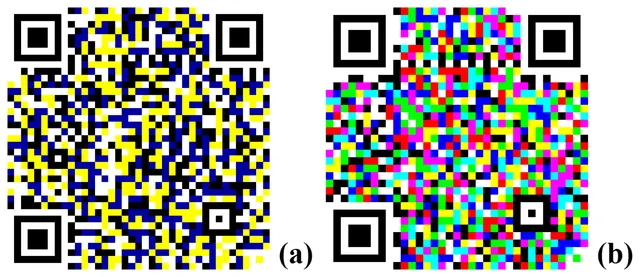
Dark on light is most reliable; colors usually print duller than on screen. A logo relies on error correction: DENSO WAVE’s four levels restore roughly 7%, 15%, 25% and 30% of the data, and a logo uses part of that before any scuff. See QR code colors.
Step 6: Pre-print checklist
- Content: opens the right page, which works on a phone.
- Link stability: any short link or QR service will stay active as long as the print. See do QR codes expire?
- File: vector, or raster big enough.
- Size: right for the distance, quiet zone included.
- Contrast: dark on light, checked in grayscale.
- Proof: printed at 100% on the real material.
- Scan test: iPhone, Android and an older device, at real distance and light.
- Call to action: such as “Scan for the menu”, ideally with the web address below.
Ten minutes of testing costs far less than reprinting a thousand flyers.
Printing a single code at home
- Make and download the code: Wi-Fi or a link.
- Place it in a document, such as Word, at the size you want.
- Print at 100% / actual size, not “fit to page”.
- Use best quality on plain matte paper.
- Scan the printout before sticking it up.
After printing
Public codes fade in sunlight and weather, and can be covered with a fake sticker. Check them regularly; see QR code scams for what tampering looks like.
Frequently asked questions
- How do I print a QR code for a website?
- Make a QR code for the page’s address, download it (ideally as SVG or PDF), place it in your document at the size you need, then print a test copy and scan it before printing more. Our link QR code guide shows how to create one.
- Is it possible to copy a QR code?
- Yes. A QR code is just a pattern, so it can be photocopied, screenshotted or reprinted, and the copy will open the same content. That is also why a public code can be covered with a fake sticker, so check printed codes regularly.
- What resolution should a QR code image be for print?
- Print work is commonly prepared at 300 dpi at final size. For a 3 cm code that means an image at least about 350 pixels wide. A vector file avoids the question entirely.
- How can I add a QR code to a 3D print?
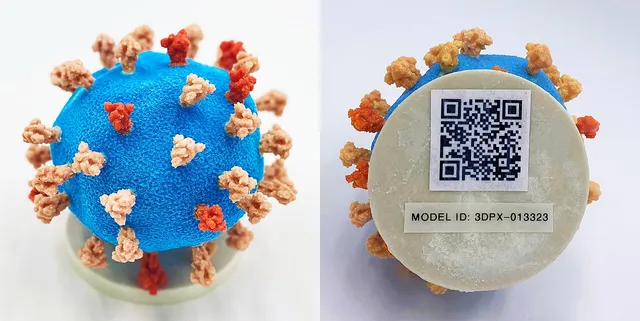
- Raise or recess the dark modules and use two contrasting colors of filament, or paint the recessed areas. Make the code large, keep the quiet zone flat and plain, and test with several phones because surface texture and shadows can confuse scanners.