How to scan a QR code on Android (Pixel, Samsung and more)
Four built-in ways to scan QR codes on Android: the Camera app, the Quick Settings scanner, Google Lens and Samsung's tools. No extra app required.
Add LearnQRCode as a preferred source on Google
Quick answer
- Open the Camera app, point it at the QR code and tap the link that pops up.
- Or swipe down and tap the Scan QR code tile in Quick Settings.
- If the camera doesn't react, use Google Lens from the Google app, Chrome or Google Photos.
Scan on Android in 3 steps
- 1Open Camera in Photo modeOr tap the Scan QR code tile
- 2Point it at the QR code
- 3Tap the link that appears
- 4No luck? Use Google LensFrom the Google app, Chrome or Photos
In this guide
Button names vary between Android brands, but almost every modern Android phone scans QR codes without an extra app. Start with Method 1 and move down the list if needed.
Method 1: Use your Camera app
- Open Camera in normal Photo mode.
- Point it at the QR code so the whole code is on screen.
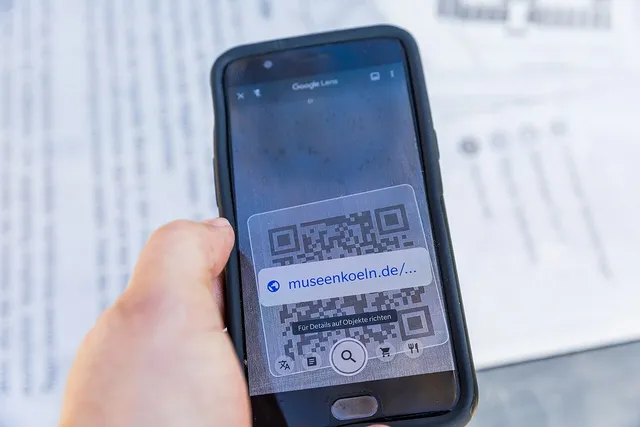
- Wait a second for a link or small QR icon, then tap it.
If nothing appears, the feature may be off:
- Google Pixel: Camera > Settings > More settings, turn on Camera scan suggestions (formerly Google Lens suggestions).
- Samsung Galaxy: Camera > Settings (gear), turn on Scan QR codes.
- Other brands: look in camera settings for QR codes, Lens or smart scanning.
Method 2: Use the Scan QR code tile in Quick Settings
Many recent phones, including Pixel and Galaxy models, have a scanner tile.
- Swipe down from the top of the screen (twice to see all tiles).
- Tap Scan QR code; swipe left if you don’t see it.
- Point at the code and tap the result.
Tile missing? Tap the pencil or edit button in Quick Settings and drag Scan QR code into your active tiles. Google notes not every device offers one.
Method 3: Use Google Lens
Lens works on almost any Android phone with Google apps, and reads codes from photos too.
Through the camera:
- Open the Google app, or tap the address bar in Chrome.
- Tap the Google Lens icon in the search bar.
- Choose Search with your camera, point at the code and tap the link.
From a screenshot or photo:
- In the Google app or Chrome, tap the Lens icon and pick the image.
- In Google Photos, open the image and tap Lens (or More, then Google Lens).
More detail: scanning QR codes from screenshots.
Method 4: Samsung Galaxy extras
| Tool | How to use it | Best for |
|---|---|---|
| Camera (Photo mode) | Turn on Scan QR codes in Camera settings, then point and tap the link | Everyday scanning |
| Quick settings tile | Swipe down with two fingers, tap Scan QR code | Fast scanning from any screen |
| Bixby Vision in Gallery | Open the image in Gallery, tap Bixby Vision, then Open in browser or Copy | Screenshots and saved images |
| Samsung Internet | Add the QR code scanner in the browser’s settings, then tap the QR icon next to the address bar | Scanning straight into the browser |
Labels vary between Galaxy models and One UI versions.
Before you open the link
Scanning is safe; the risk is what you open. Samsung’s support page gives the same advice.
- Read the web address in the preview and check the domain is spelled correctly.
- Be wary of codes stuck over other codes on parking meters, posters or tables.
- Don’t enter passwords or card details on a page from an unexpected code (email, text or package).
Read our QR code scams guide for common tricks.
When your phone still won’t scan
- Clean the lens.
- Change the distance so the full code and its blank border fit.
- Add light, cut glare with the flashlight or a slight tilt.
- Try another method, such as Google Lens.
- Update the Google app, your camera app and the system.
If none of that works, the code may be damaged, tiny or low-contrast. See our troubleshooting checklist.
Related guides
Frequently asked questions
- Do Android phones have a built-in QR scanner?
- Most do. The camera app on Pixel and Samsung phones recognizes QR codes, many phones have a Scan QR code tile in Quick Settings, and Google Lens is preinstalled on most Android phones through the Google app.
- Why won't my Android camera scan QR codes?
- QR detection may be switched off in the camera settings (on Pixel it's Camera scan suggestions, on Samsung it's the Scan QR codes switch), or the light, distance or code quality may be the problem. Try the Quick Settings tile or Google Lens instead.
- How do I add the QR scanner to Quick Settings?
- Swipe down twice from the top of the screen, swipe left to see more tiles, and look for Scan QR code. If it's not there, tap the pencil or edit button and drag the tile into your active tiles.
- Can I scan a QR code from a picture on Android?
- Yes. Open the image in Google Photos and tap Google Lens, or open Google Lens in the Google app and pick the screenshot. On Samsung phones you can also use Bixby Vision from the Gallery app.