How to scan a QR code on a computer or laptop
Scan QR codes on Windows, Mac and Chromebook: use your webcam, read a code on your screen with Google Lens, or let your phone do the work.
Add LearnQRCode as a preferred source on Google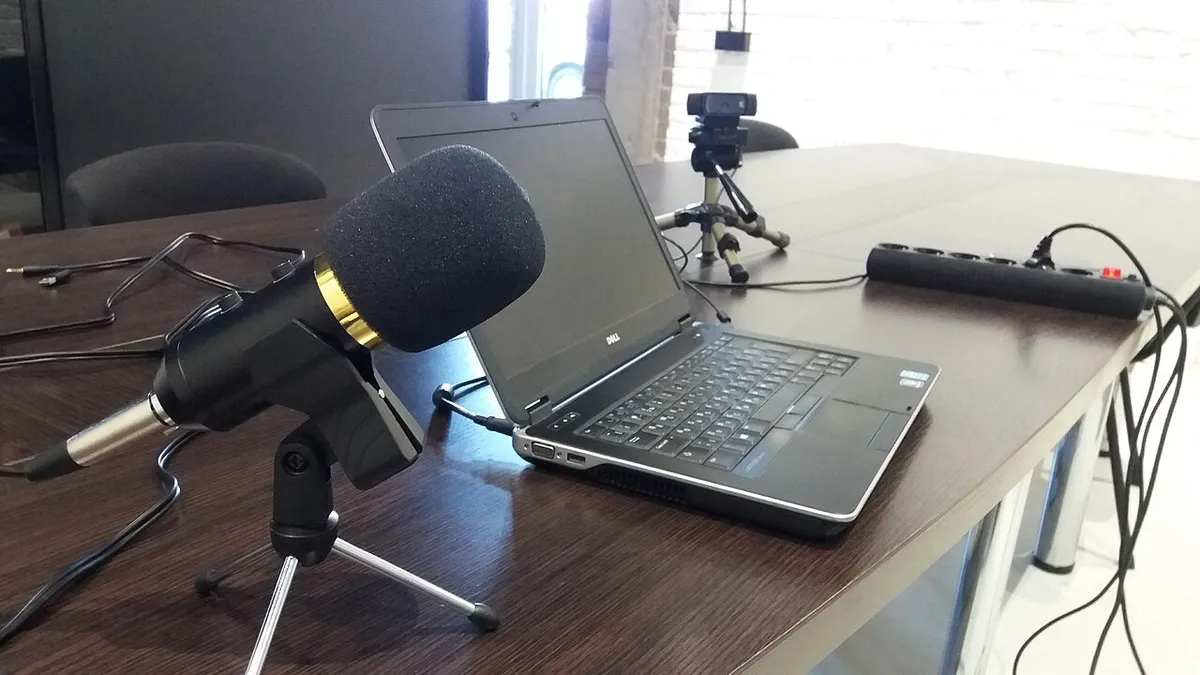
Quick answer
- Windows: open Camera, select Barcode and hold the code up to the webcam. Chromebook: Camera > Scan > QR code.
- Code on your screen: in Chrome, right-click the image and choose Search with Google Lens.
- Mac: no QR mode in the camera, so use Google Lens in Chrome or your iPhone.
Scan on a computer
- 1Windows: Camera, select BarcodeHold the code up to the webcam
- 2Chromebook: Camera, Scan, QR code
- 3On screen: Search with Google LensRight-click the image in Chrome
- 4Mac: scan with your phone
In this guide
The method depends on your operating system and where the code is: printed (hold it up to a webcam) or already on your screen.
Which method should you use?
| Your situation | Best method |
|---|---|
| Printed code, Windows laptop | Windows Camera app in Barcode mode |
| Printed code, Chromebook | Chromebook Camera app, Scan > QR code |
| Printed code, Mac | Scan it with your phone instead |
| Code on your screen, any computer | Google Lens in Chrome (right-click the image) |
| No webcam, no Chrome | Scan the screen with your phone |
Windows: Camera app barcode mode
- Open Camera from the Start menu.
- Select the Barcode button on the right-hand side.
- Hold the QR code in front of your webcam; it scans automatically.
- Select the link that appears at the bottom to open it.
Wi-Fi codes open Settings, where you confirm joining the network.
No Barcode button? Update the Camera app from the Microsoft Store and install pending Windows updates.
Webcam tip: laptop webcams have fixed focus and low resolution. Start about a forearm’s length away, move closer slowly, and use good front lighting.
Chromebook: Camera app scan mode
- Open Camera from the Launcher.
- At the bottom, choose Scan, then QR code.
- Hold the code in front of the camera.
- Open the link or copy the text that appears.
Pointing the viewfinder at a code without switching modes can also work, but QR code mode is most reliable.
Mac: what works
The built-in Mac camera apps have no QR mode. Your options:
- Use your phone for printed codes, then share the link to your Mac (AirDrop, Messages or email).
- Use Google Lens in Chrome for on-screen codes (below).
- Install a scanner app from the Mac App Store; check reviews and permissions first.
Any computer: read a code on your screen
- If the code is in a file, drag the image into Chrome.
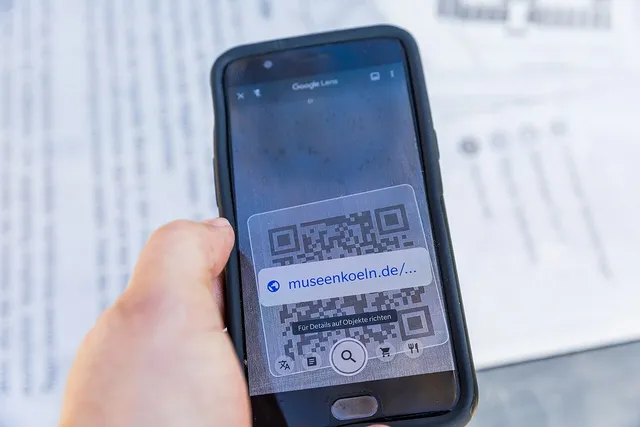
- Right-click the code and choose Search with Google Lens.
- Click the link in the side panel.
For a code inside a PDF, right-click an empty part of the page, choose the Google Lens option, and drag a box around the code.
- Google says the option requires Google as Chrome’s default search engine.
- The image is sent to Google, so avoid this for sensitive codes such as two-factor setup codes.
More options: scanning a QR code from a screenshot or photo.
The phone-as-scanner workaround
- Open the code full-screen and raise the brightness.
- Point your phone’s camera at the monitor; tilt slightly if you see glare or stripes.
- Tap the link on your phone, or send it back to your computer.
Step-by-step guides: iPhone and Android.
Troubleshooting
- Webcam can’t focus: move the code further away.
- Reads on phone but not webcam: the webcam’s resolution is too low for a small or dense code; use the phone.
- Lens option missing: update Chrome, set Google as default search engine; work or school devices may have Lens disabled.
- Won’t read anywhere: the code may be damaged. See our QR code troubleshooting checklist.
Stay safe on desktop too
A code on a computer screen moves you to your phone, where the address is harder to inspect. Be cautious with unexpected emails asking you to “verify your account” or “pay now”. See our guide to QR code scams.
Frequently asked questions
- Can I scan a QR code with my laptop camera?
- Yes on Windows and Chromebook, which have QR scanning in their built-in Camera apps. On a Mac, the built-in camera apps don't read QR codes, so use your phone or an image tool such as Google Lens.
- How do I scan a QR code on my computer screen?
- Right-click the code in Chrome and choose Search with Google Lens, or point your phone's camera at the screen. Both work on Windows, Mac and Chromebook.
- How do I open a QR code on my computer without a camera?
- Use Google Lens in Chrome on the image, or take a photo of the code with your phone and send the link to your computer.
- Do I need to install software to scan QR codes on Windows?
- Usually not. The Windows Camera app includes a barcode mode that reads QR codes. You only need extra software for features like batch scanning.