How to scan a QR code on iPhone and iPad
Scan any QR code with your iPhone or iPad camera or the Code Scanner in Control Center, plus how to read a code that's already on your screen.
Add LearnQRCode as a preferred source on Google
Quick answer
- Open the Camera app, point it at the QR code in Photo mode, then tap the yellow link at the bottom.
- Or open Control Center and tap Scan Code (Code Scanner on older iOS).
- For a code on your own screen, use Google Lens, or show it on another device.
Scan with your iPhone in 3 steps
- 1Open Camera in Photo modeOr tap Scan Code in Control Center
- 2Fit the code in the frame
- 3Tap the yellow linkCheck the address first
In this guide
Any iPhone or iPad on a reasonably recent iOS or iPadOS reads QR codes without an extra app. There are two built-in methods, plus a workaround for codes already on your screen.
Method 1: Scan with the Camera app
- Open Camera from your Home Screen, Lock Screen or Control Center.
- Stay in Photo mode (the default).
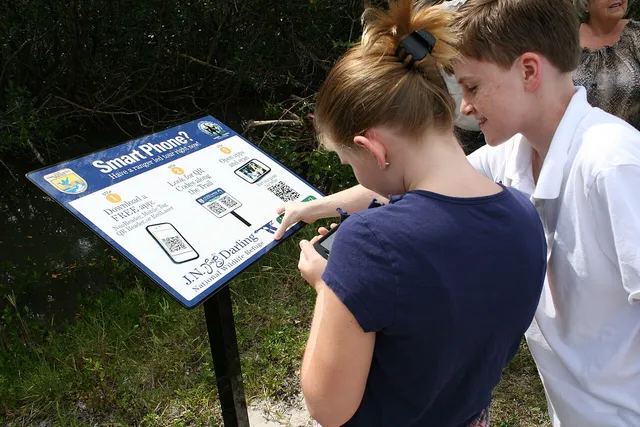
- Fit the whole QR code inside the frame. No need to press the shutter.
- When a link or notification appears at the bottom, tap it.
Tips:
- Hold steady. As a rough guide, start 15 to 30 cm (6 to 12 inches) from a small printed code; move back for posters.
- Keep the code flat and square to the camera.
- In the dark, turn on the flashlight in Control Center, or use Method 2.
Method 2: Use Scan Code in Control Center
This scanner opens straight into scanning mode, has a flashlight button, and opens links full screen.
- Open Control Center: swipe down from the top-right corner (Face ID models) or up from the bottom edge (Home button models).
- Tap Scan Code (called Code Scanner on older iOS).
- Point at the code and tap the link that appears.
If Scan Code isn’t in Control Center
- Current iOS: open Control Center, touch and hold an empty part of the background, tap Add a Control, then choose Scan Code.
- Older iOS: go to Settings > Control Center and tap the green add button next to Code Scanner.
On iPhones with the Camera Control button, Apple notes you can also use it to scan QR codes.
How to scan a QR code that’s on your iPhone screen
Your camera can’t look at its own display. For a screenshot or a code someone texted you:
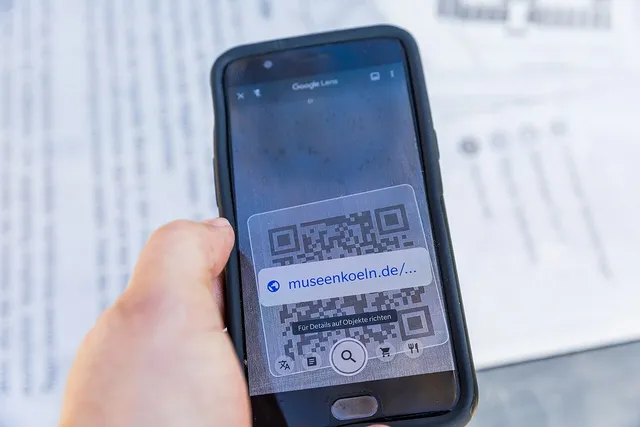
- Google app (or Chrome): tap the Google Lens icon in the search bar and choose the screenshot. Lens shows the link or text.
- Google Photos: open the photo, tap More, then Google Lens.
- Another device: open the image on a second screen and scan it with your iPhone.
Google notes that with Visual Search History on, images you search with Lens in the Google app can be saved to your Google account activity.
On recent iOS, Live Text in Photos may offer to open the link when you touch and hold the code. Apple documents Live Text for text, links and phone numbers rather than QR codes, so use Google Lens if nothing happens. More options: scanning a QR code from a screenshot or photo.
Check the link before you tap
The preview is your chance to catch a fake:
- Does the domain match the business you expect?
- Is it spelled correctly, with no swapped letters?
- Is it asking you to log in or pay unexpectedly?
Scammers stick fake codes over real ones on parking meters, posters and menus. See our guide to QR code scams.
Still not scanning?
- Wipe the camera lens.
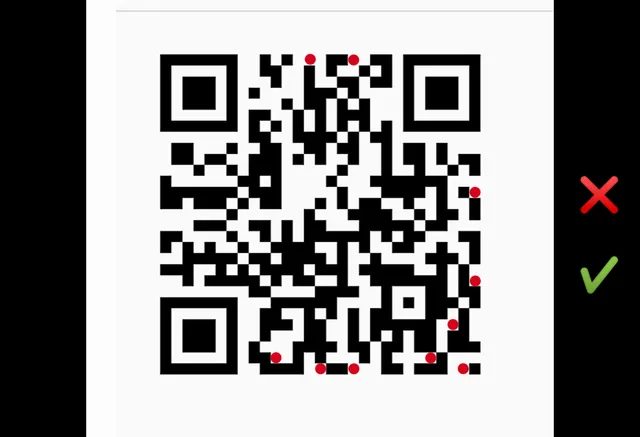
- Move back so the whole code and its blank border are in view.
- Tilt slightly to remove glare.
- Turn on the flashlight in Scan Code.
- Update iOS in Settings > General > Software Update.
If the code is blurry, tiny, faded or low-contrast, the code may be the problem. Our QR code troubleshooting checklist covers every fix.
What you can do with a scanned code
| What’s in the code | What your iPhone offers |
|---|---|
| Website link | Opens the page in your browser |
| Wi-Fi network details | Offers to join the network |
| Contact card | Offers to add the contact |
| Phone number or text message | Offers to call or start a message |
For other devices, see our guides for Android phones and computers, or the overview of how to scan a QR code on any device.
Frequently asked questions
- Do I need an app to scan QR codes on iPhone?
- No. The built-in Camera app and the Scan Code control in Control Center both read QR codes on iPhone and iPad. A separate scanner app is only useful for extra features such as scan history.
- Why won't my iPhone camera scan a QR code?
- The most common causes are being too close or too far, poor light, glare on a glossy surface, or a damaged or low-contrast code. Try the Scan Code control in Control Center, turn on the flashlight, and see our troubleshooting guide if it still fails.
- How do I scan a QR code that is on my iPhone screen?
- Your iPhone's camera can't point at its own screen. Open the image in the Google app or Google Photos and use Google Lens, or display the code on another phone, tablet or computer and scan it with your iPhone's camera.
- Can an iPad scan QR codes?
- Yes. The steps are the same as on iPhone: use the Camera app or the Scan Code control in Control Center.