How to scan a QR code from a screenshot or photo
Read a QR code that's already on your phone or computer: step-by-step methods for iPhone, Android, Samsung, Windows, Mac and Chromebook.
Add LearnQRCode as a preferred source on Google
Quick answer
- Your camera can't scan its own screen, so use a tool that reads saved images, such as Google Lens.
- On a phone, open the screenshot in Google Photos and tap Lens; on Samsung, use Bixby Vision in Gallery.
- On a computer, right-click the image in Chrome and choose Search with Google Lens.
Read a code on your screen
- 1Take a screenshot of the codeKeep the blank border
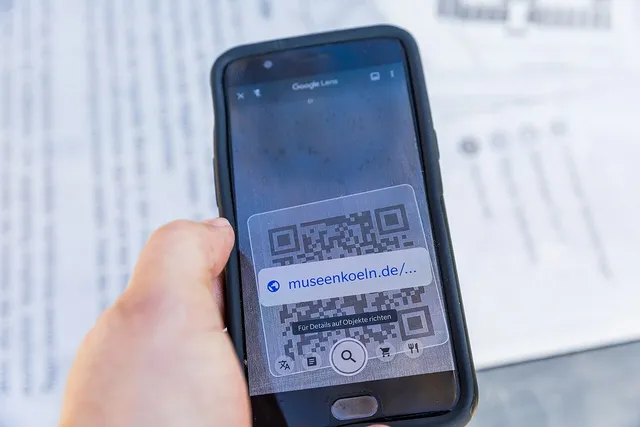
- 2Open it with Google LensGoogle Photos, Google app or Chrome
- 3Check the address Lens shows
- 4Tap the link to open it
In this guide
Tickets, payment codes and Wi-Fi codes often arrive on a screen, and your phone’s camera can’t point at its own display. The fix is a tool that reads QR codes from saved images.
On iPhone or iPad
Option 1: Google Lens in the Google app or Chrome
- Take a screenshot of the code, or save the image to Photos.
- Open the Google app (or Chrome) and tap the Google Lens icon in the search bar.
- Allow photo access if asked, then pick the screenshot.
- Tap the link or text Lens shows.
Option 2: Google Photos
Open the image in Google Photos, tap More, then Google Lens, and tap the link it finds.
Option 3: The Photos app on recent iOS
Depending on your iOS version, touching and holding the code in Photos may offer to open its link via Live Text. Apple documents Live Text for text, links and phone numbers rather than QR codes, so use Google Lens if nothing happens.
On Android
Option 1: Google Photos
- Take a screenshot (on most phones, press Power and Volume down together).
- Open it in Google Photos and tap Lens (or More, then Google Lens).
- Tap the link Lens shows.
Option 2: Google Lens in the Google app or Chrome
Open the Google app or tap the address bar in Chrome, tap the Lens icon, and choose the image.
Option 3: Samsung Galaxy phones
- Open the image in Gallery.
- Tap Bixby Vision.
- Tap Open in browser to visit the link, or Copy to copy it.
Button names vary slightly between Galaxy models and One UI versions.
On a computer
Windows, Mac or Linux with Chrome
- Open the image in Chrome (drag the file into a window), or find the code on a web page.
- Right-click it and choose Search with Google Lens.
- Click the link in the side panel.
Google must be your default search engine in Chrome for this option to appear, and the image is sent to Google for analysis.
Chromebook
The same Chrome method works. For a code you can hold up to the webcam, the Chromebook Camera app also has a QR scanner (see scanning QR codes on a computer).
The universal workaround: a second screen
Show the image on another device, such as a laptop, tablet or a friend’s phone, and scan it with your phone’s camera. Turn up the brightness and zoom in. It works on every phone with no app or account.
Quick comparison
| Device | Built-in or free option | Needs a second screen? |
|---|---|---|
| iPhone / iPad | Google Lens (Google app, Chrome or Google Photos); Photos app may work on recent iOS | No |
| Android | Google Photos Lens, Google app Lens | No |
| Samsung Galaxy | Bixby Vision in Gallery, or Google Lens | No |
| Windows / Mac | Right-click the image in Chrome, then Search with Google Lens | No |
| Chromebook | Google Lens in Chrome | No |
| Any device | Show the image on another screen and scan with your camera | Yes |
Tips for screenshots that won’t read
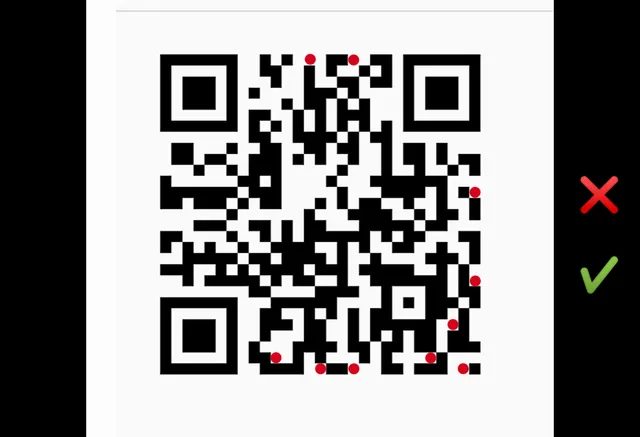
- Crop tightly but keep the border. Leave the blank margin (the “quiet zone”); scanners use it to find the edges.
- Avoid heavily compressed images. Codes forwarded several times can get blurry; ask for the original.
- Zoom in before screenshotting a tiny code on a web page.
- Remove overlays such as notification banners or cursor arrows.
Still stuck? See our troubleshooting checklist.
Safety: screenshots aren’t automatically safe
A code in an email, text or social message hides who made it, which is why scammers like them. Read the web address before opening it, and never enter passwords or payment details on a page from an unexpected code. See our guide to QR code scams.
For live camera scanning, see our guides for iPhone and Android.
Frequently asked questions
- Can you scan a QR code from a screenshot?
- Yes. A screenshot contains the same pattern as the printed code, so any tool that reads codes from images, such as Google Lens or Samsung's Bixby Vision, can decode it.
- How do I scan a QR code that someone sent me on my phone?
- Save the image or take a screenshot, then open it in Google Photos and tap Lens, or use the Lens button in the Google app. On a Samsung phone you can use Bixby Vision in the Gallery app.
- Can I scan a QR code from a picture without another phone?
- Yes. Image-reading tools like Google Lens decode the code directly from the photo on your device, so you don't need a second phone.
- Is it safe to scan a QR code from a screenshot?
- It carries the same risk as any QR code. Check the web address before opening it, and be careful with codes from unexpected emails or texts.
Sources
- Search with an image on Google, iPhone & iPad (Google Search Help)
- Get info about your photos & surroundings, iPhone & iPad (Google Photos Help)
- Ways to scan a QR code on your Galaxy phone or tablet (Samsung US Support)
- Search with Google Lens in Chrome, Computer (Google Chrome Help)
- Interact with content in a photo or video on iPhone (iPhone User Guide)